The BI Connector’s IDE for Oracle Fusion Reporting (aka the BI Connector Developer Edition) enables the Fusion report developer users to write, test, fine-tune SQL queries for BI Publisher reports. The users can switch between Dev, Test, and Prod instances and preview/extract data - all in a single screen.
Below is a short video demo showing the steps to use the connector:
Step 1: Create a connection
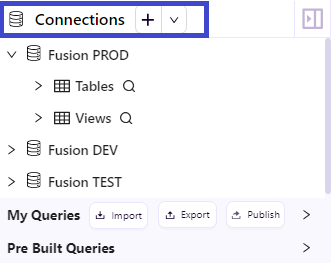
In the Query Editor screen, click on the + icon on the Connections section visible in the top left.
A pop-up like below would open:
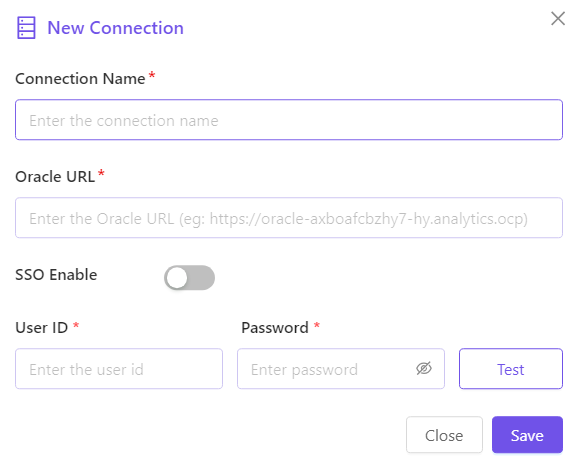
Non-federated, basic authentications
Enter a name in the Connection Name field
Enter your Oracle Fusion URL
Note - Open a browser and login to Oracle Fusion, and then copy the URL up to oraclecloud.comEnter the User ID and Password and click Test
Upon successful test (indicated by a tickmark on the Test button), click Save
Federated authentications with/without MFA
Enter a name in the Connection Name field
Enter your Oracle Fusion URL
Note - Open a browser and login to Oracle Fusion, and then copy the URL up to oraclecloud.comEnable the SSO Enable option
- Click Test
A browser window with your login screen would open. Go through the login flow - Upon successful auth in the browser, click Save
Once the connection is successfully created, it would be visible on the Connections section. The Tables and Views under that connection, along with the column name and column type would be visible just by expanding the connection by clicking the > to its left.
You can create as many connections as you want to your Fusion instances, be it Dev, Test or Prod.
Step 2: Run SQL queries to Fusion and preview/extract data
Upon successful connection creation, the BI Connector Developer Edition is straightforward. If you are a user with prior experience on any other SQL IDE you would find it self-explantory and easy to use as soon as you see the User Interface.
The following sections would help for quick references, especially for the users experiencing a SQL IDE for the first time or are new to reporting in Oracle Fusion.
Jumpstart with pre-built queries
Not sure where to start? Use the BI Connector’s pre-built queries for Fusion ERP, SCM and HCM, and run against your instance instantly.
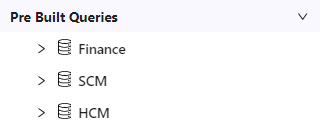
Navigate to the pre-built queries section in the left and expand the folder by clicking on the . Expand the folder of your interest and double-click any query to open it on a new tab on the right side section. Any query with a crown symbol is a premium query which can be purchased by contacting the BI Connector team.

How to edit a pre-built query?
To make tweaks to a pre-built query, just follow the steps below:
- Navigate to the pre-built query of your interest, and double-click on it to see the query
- Press Ctrl+A to and Ctrl+C to select all and copy the entire query
- Click the + icon at the top of the query editor
- Past the copied query, make tweaks as needed
- Rename the query by clicking the pencil icon in the query tab at the top, and save it. This edited query will be available in the My queries section.
Create your own queries
To create a new query from the scratch, click on the + icon from the menu in the right side section. A new tab named Untitled_# opens. Then you can start creating your own query. As you type, the BI Connector would show auto-suggestions to help avoid typos and save time. You can also use the Cut, Copy, paste options at the top as needed to write the query fast.

Once done, you can rename the query just by clicking on the Pencil icon on the tab. Save the query by clicking on the Save option, post which your query would be visible in the My Queries section.
Expand the My Queries section to see the list of queries you created and saved.

Query Syntax
The BI Connector Developer Edition supports the same syntax of BI Publisher Data Models in all aspects (including commenting, alias naming, calculations etc). The queries are automatically routed to the appropriate Data Source among the FSCM, HCM and CRM databases.
Edit queries
You can edit all the queries in the My queries section. To edit the queries in the pre-built queries section, you can select and copy the query and click the + icon and paste in the new tab.
You can finish the edits, rename the query if required, and save it.
Execute query code partially
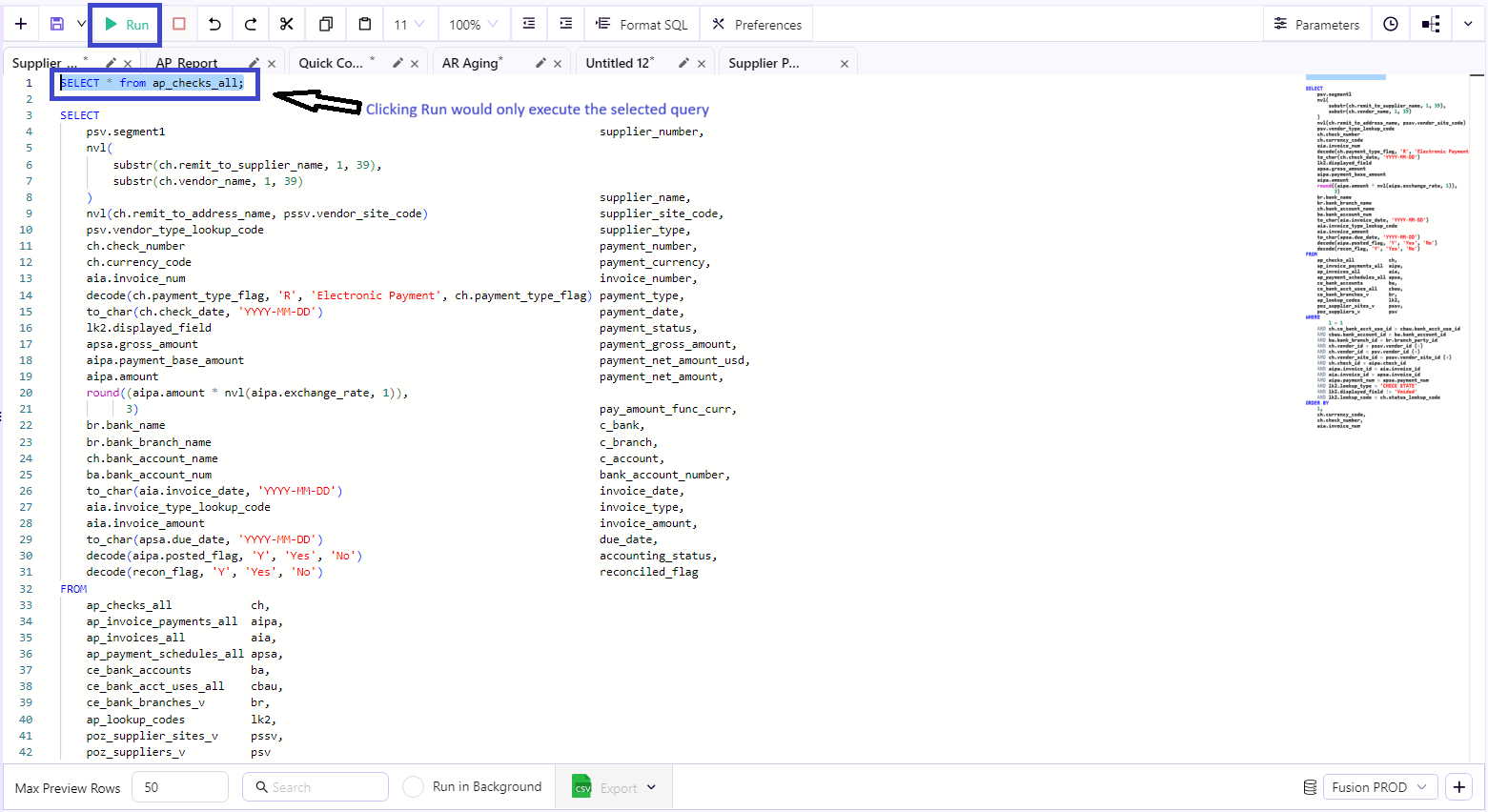
SQL Developers, while creating a query, often require to execute a part of the query to verify the results.
This can be done by selecting the part of the query you want to execute and clicking on the Run button at the top. The BI Connector then would automatically ignore the unselected lines, and only run the selected part.
Deleting queries
The pre-built queries cannot be deleted. The queries in the My queries section can be deleted by expanding the section, and hovering over the query that you want to delete and by clicking the Delete icon that appears.

Format SQL and Indent
SQL looks messed up? Just use the Format SQL option at the top to format your query and make it look clean and convenient to optimize and fine-tune.

In addition, you can also use the Left and Right indent option for a clear view of the query.
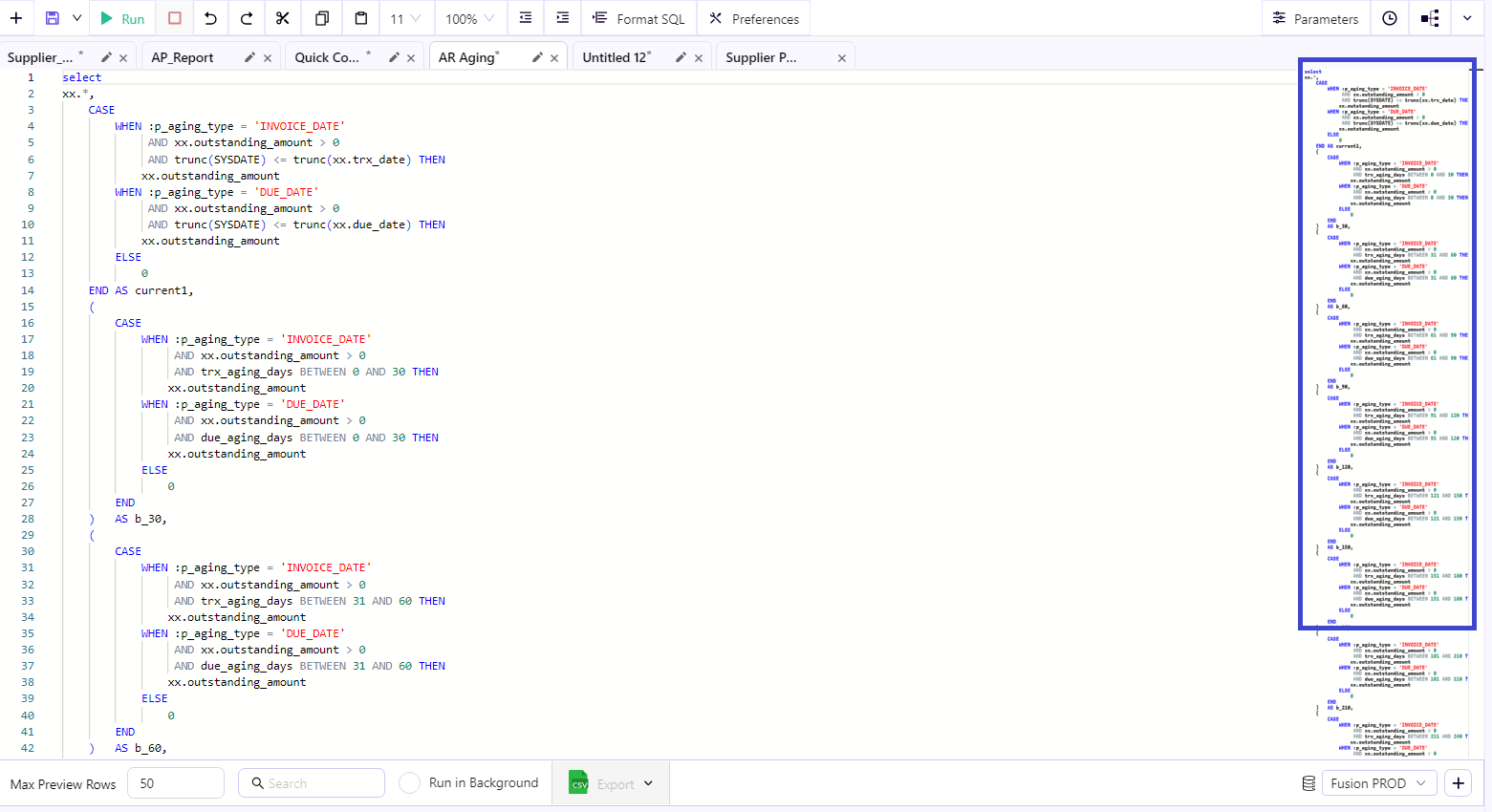
Using Minimaps for large queries
Is your SQL query too long that you can’t view it without vertical scrolling? Navigate quickly to the part you want to edit just by using the Minimap option at the right-side of the editor by clicking on the appropriate section.
Parameterization
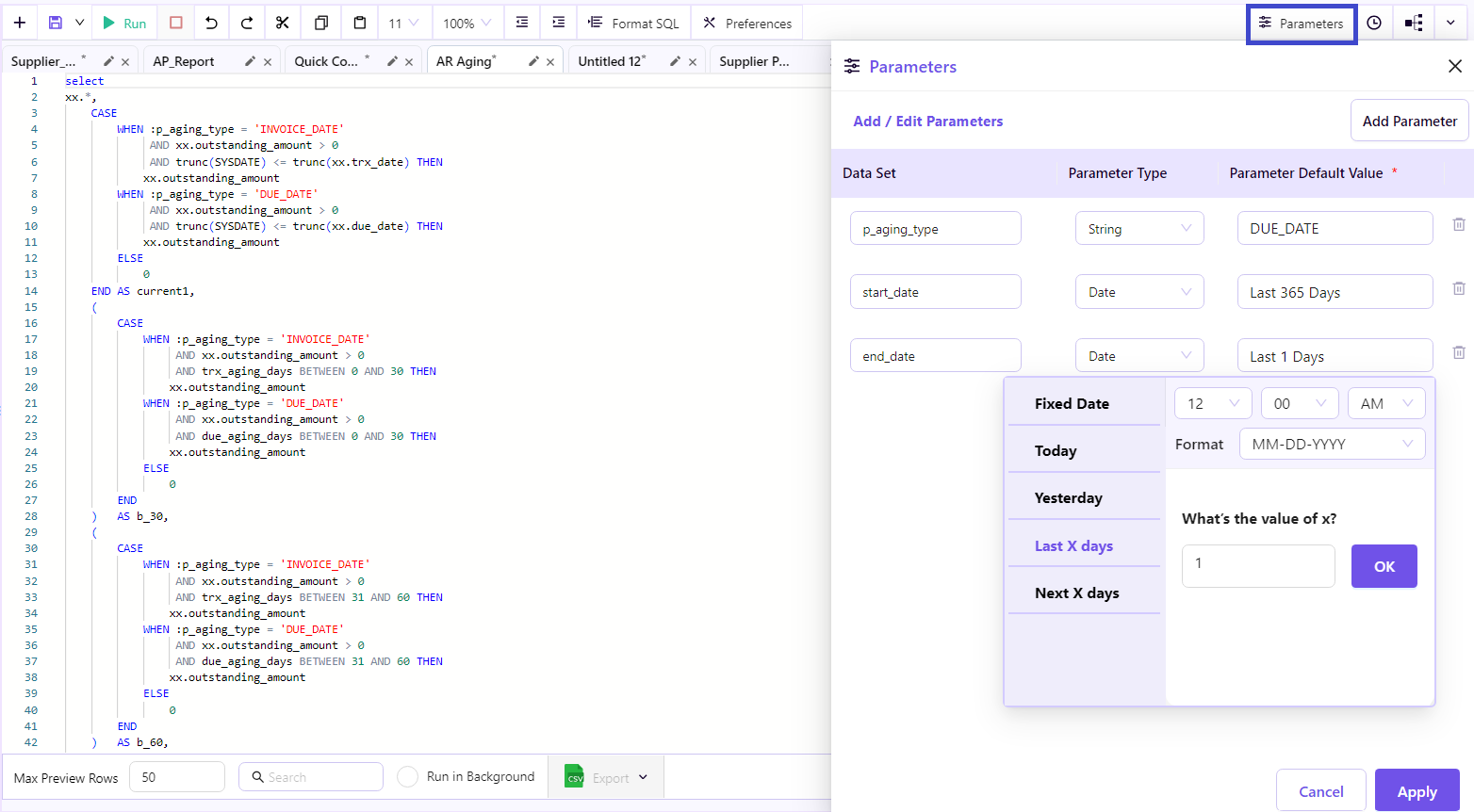
Dealing with a large set of data, but you want only a portion of it retrieved? You can use the bind parameters within the query and pass values while running it.
The Bind parameters are automatically created in the Parameters section when you create them in the query, and are defaulted to the String type. You can open the Parameters section at the top right, and change it to Number, or Boolean, or Date as you want. While clicking Run, the Parameters section opens, prompting the user to enter the parameter values.
You can also pass date values dynamically, like TODAY, YESTERDAY, LAST X DAYS etc.
Running and stopping query execution
You can run or execute the query by selecting the tab with the query you want to execute, selecting the appropriate connection at the bottom right (to route to the right connection if you have multiple connections), and then by clicking the Run button at the top. If you have parameters in the query, you’ll be prompted to enter the parameter values at the runtime, post which the query would be executed.
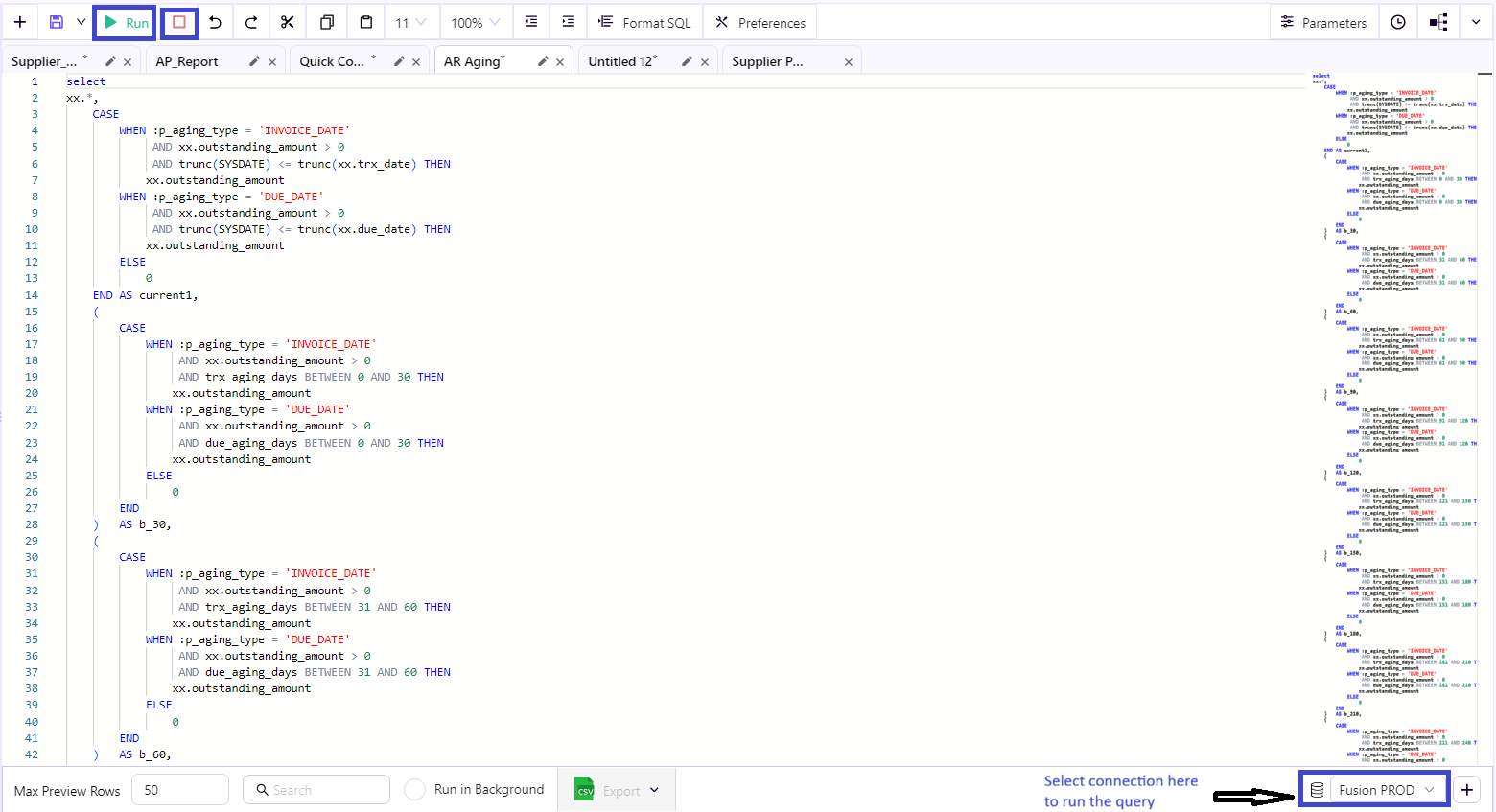
If you’d like to Stop the query execution while it’s running, you can click on the Stop button.
Preview and Extract data, Run in Background
A preview of 50 rows will be shown at the bottom by default. You can adjust the number of preview rows in the Max Preview Rows box. You can also export the data to Excel and CSV.

If you select Run in Background, the query would start getting executed in the background and a notification would be displayed when it’s completed which provides you the flexibility to navigate to other tabs and work on the queries there during the query execution.
SQL History
The SQL History option at the top right (the Clock icon) will show a quick overview of the queries executed with options to filter them.

Preferences
The Preferences option at the top would help the users to set their preferences in the Query editor. Clicking the option would open a popup with two vertical tabs - Shortcuts and Configuration.

The Shortcuts tab would show the list of shortcuts that you can use in the query editor. The Configuration tab is for the users to set their preferences on what should or should not be displayed, with additional options on font size.
Download logs
At any time during the use of the product, you can click on the question mark icon at the top right and click Download logs to see the logs captured in the BI Connector files. They would be useful for troubleshooting purposes.

Collapse and Expand Options
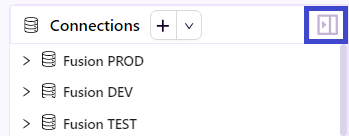
The left pane can be expanded and collapsed (by clicking on the icon at the top right of the left pane) to create additional space for the query editor in the screen if required.
Automate Dataflows to Data Warehouse, Power BI & Tableau
Though this documentation is mainly focused on the IDE for Oracle Fusion reporting, the BI Connector unlocks new possibilities to automate the dataflow from Fusion to a Data Warehouse/Lakehouse of your choice in minutes, or to a data visualization platform like Power BI or Tableau. Please Contact Sales if you need a license for dataflow automation.