Query Oracle Fusion data directly from Visual Studio Code.
BI Connector for VS Code brings the full Fusion query development workflow into your editor. Connect to your Fusion application database to browse tables, columns, indexes, and constraints; write and run SQL with the editor tooling you already use; and publish finished queries as Oracle Fusion Data Models without switching tools. The extension also integrates with AI agents like GitHub Copilot and Claude Code, letting them generate accurate Fusion SQL against your real table definitions — so you spend less time on boilerplate and more time on query development.
Note: A BI Connector subscription is required. A 14-day free trial license is available on first launch. Contact sales@biconnector.com for a paid subscription.
Table of Contents
- Requirements
- Getting Started
- Managing Queries with BI Connector Instances
- Extension Settings
- Support and Feedback
- About BI Connector
- License
Requirements
- Operating System: 64-bit Windows (macOS and Linux are not currently supported).
- Visual Studio Code: Desktop version 1.80.0 or later.
- BI Connector Desktop installed locally. The extension will prompt you to download it on first use if it is not detected.
- A valid BI Connector license, or the 14-day trial (activated automatically on first launch).
- Network access to your Oracle Fusion or Oracle Analytics environment.
- The Fusion user must have the following roles:
- BI Author
- BI Publisher Data Model Developer or Application Developer
Getting Started
1. Install the Extension
Search for BI Connector for Oracle Fusion SQL Developer in the VS Code Extensions Marketplace and click Install.
2. Install BI Connector Desktop
The extension requires BI Connector Desktop. If it is not installed, or if an outdated version is detected, you will be prompted to download and install the latest version on first use. Follow the on-screen instructions to complete the setup.
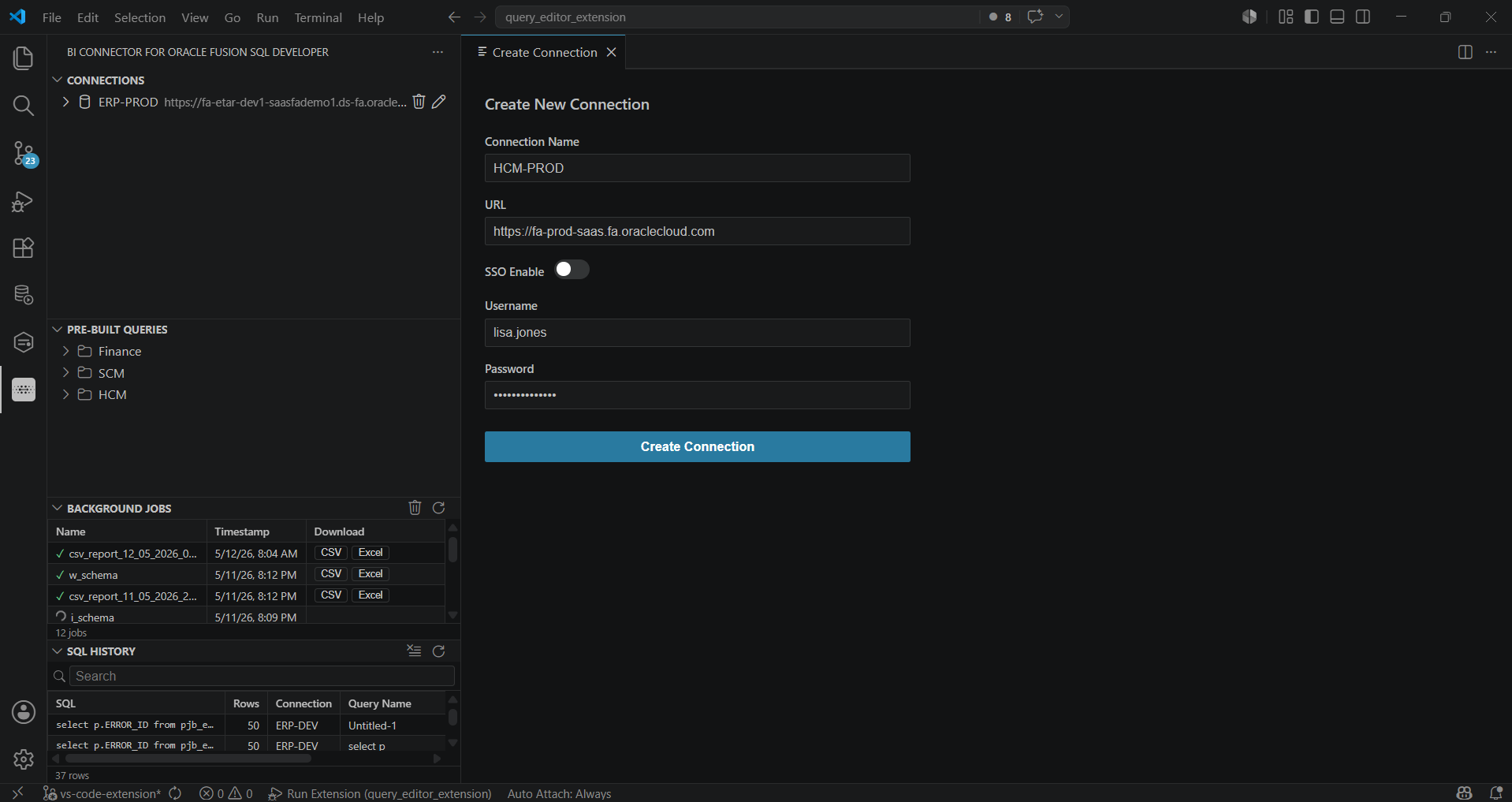
3. Create a Connection
- Click the BI Connector icon in the VS Code Activity Bar (left sidebar).
- Select Create Connection.
- Enter your Oracle Fusion connection details:
- Connection Name — a friendly name to identify this connection.
- Host URL — your Oracle Fusion instance URL (e.g.,
https://fa-dev1-saasfademo1.ds-fa.oraclepdemos.com/). - Authentication — enable SSO, or provide a Username and Password.
- Click Save to create the connection.
4. Activate Your License
A 14-day trial license is activated automatically on first launch. To use an existing subscription:
- Open the extension settings.
- Click Edit Subscription.
- After Redirecting to the web page. You can update your exisitng license key
5. Explore Table Schema, Indexes, and Constraints
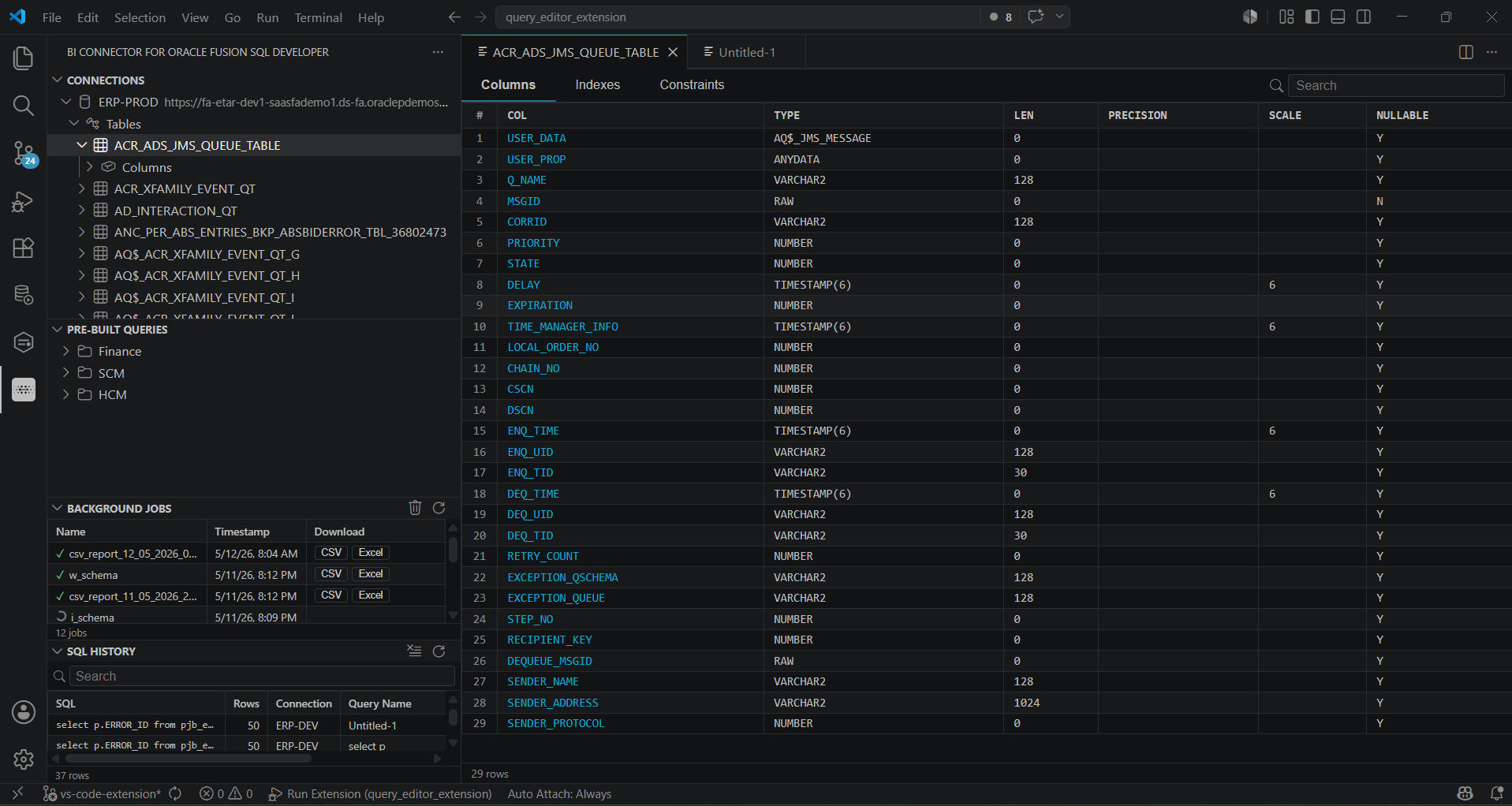
Expand a connection in the Connections panel to view all available tables and views. Double-click any table to open a detailed schema view — no query required. The schema explorer gives you a full picture of the table's structure directly inside VS Code.
Each table view includes three tabs:
- Columns — every column, with its data type, nullable flag, and default value.
- Indexes — all indexes defined on the table, including index type and the columns they cover.
- Constraints — primary keys, foreign keys, unique constraints, and check constraints.
6. Write and Run Your First Query
Open a new .sql file and set the language mode to PL/SQL (oracle-sql). Select your connection from the dropdown, write your query, and click Run. Results appear in the data panel below.
AI-Assisted Query Generation
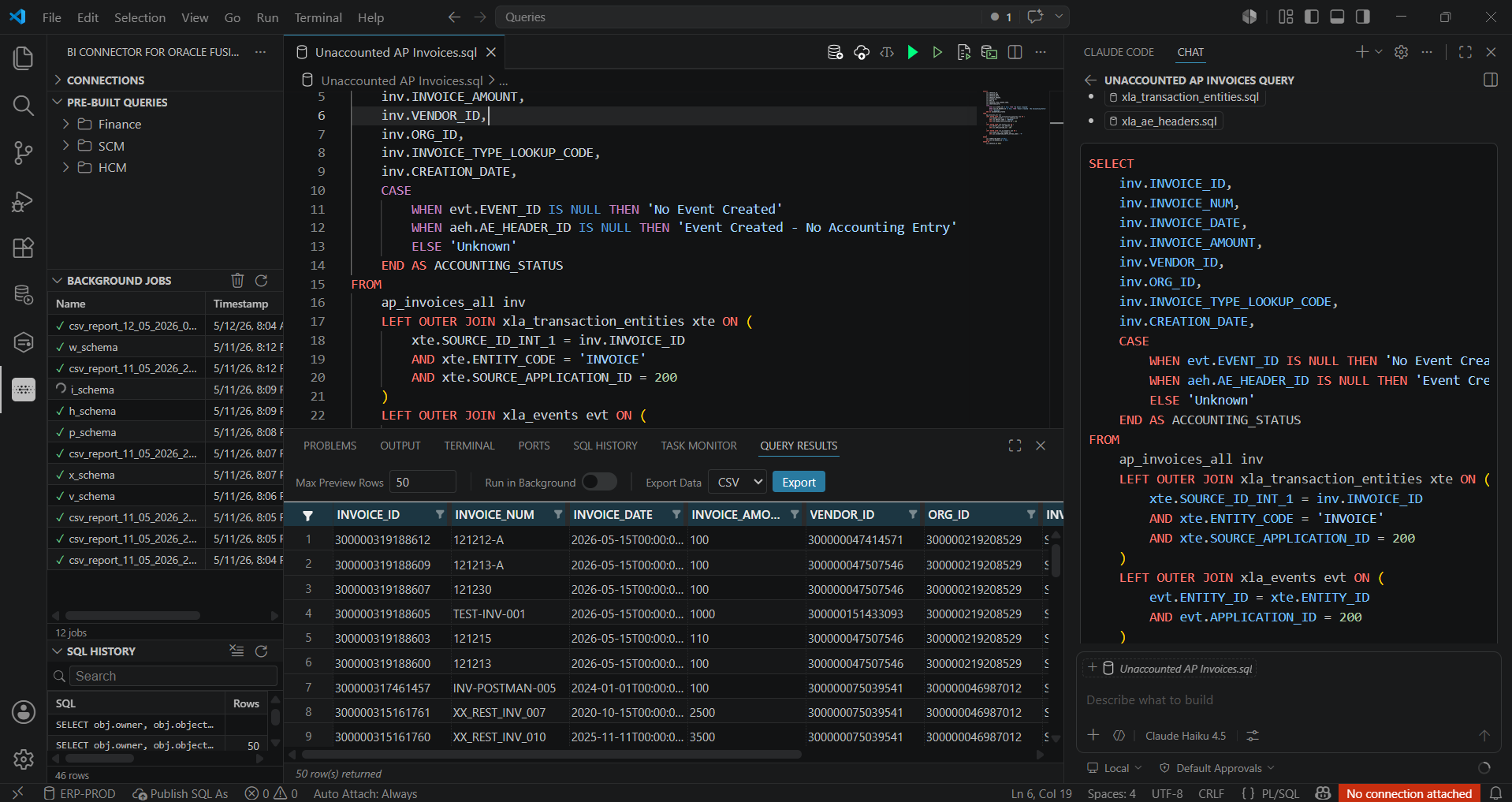
If you use GitHub Copilot, Claude Code, or any other VS Code-integrated AI assistant, you can have it draft BI Connector queries for you — then run, verify, and publish them without leaving the editor.
For better results, give the agent two pieces of context:
- An agent instruction file (
claude.md) — tells the assistant how to write queries for BI Connector. - A local schema file (
fusion-schema.sql) — gives the assistant your Fusion table definitions to reference.
To get started:
- Download
claude.mdand the Fusion table schema, then add both to your VS Code workspace. - Prompt the agent with your request — for example: "Write a query to return unaccounted AP invoices."
- Review the generated query.
- Run it against your BI Connector connection to verify the results.
Writing Queries Manually
You can also write queries directly in the editor.
Example — simple query:
SELECT * FROM HR_ORGANIZATION_UNITS;Example — query with bind parameters:
SELECT *
FROM PER_ALL_PEOPLE_F
WHERE PERSON_ID = :P_PERSON_ID
  AND EFFECTIVE_START_DATE >= :P_START_DATE;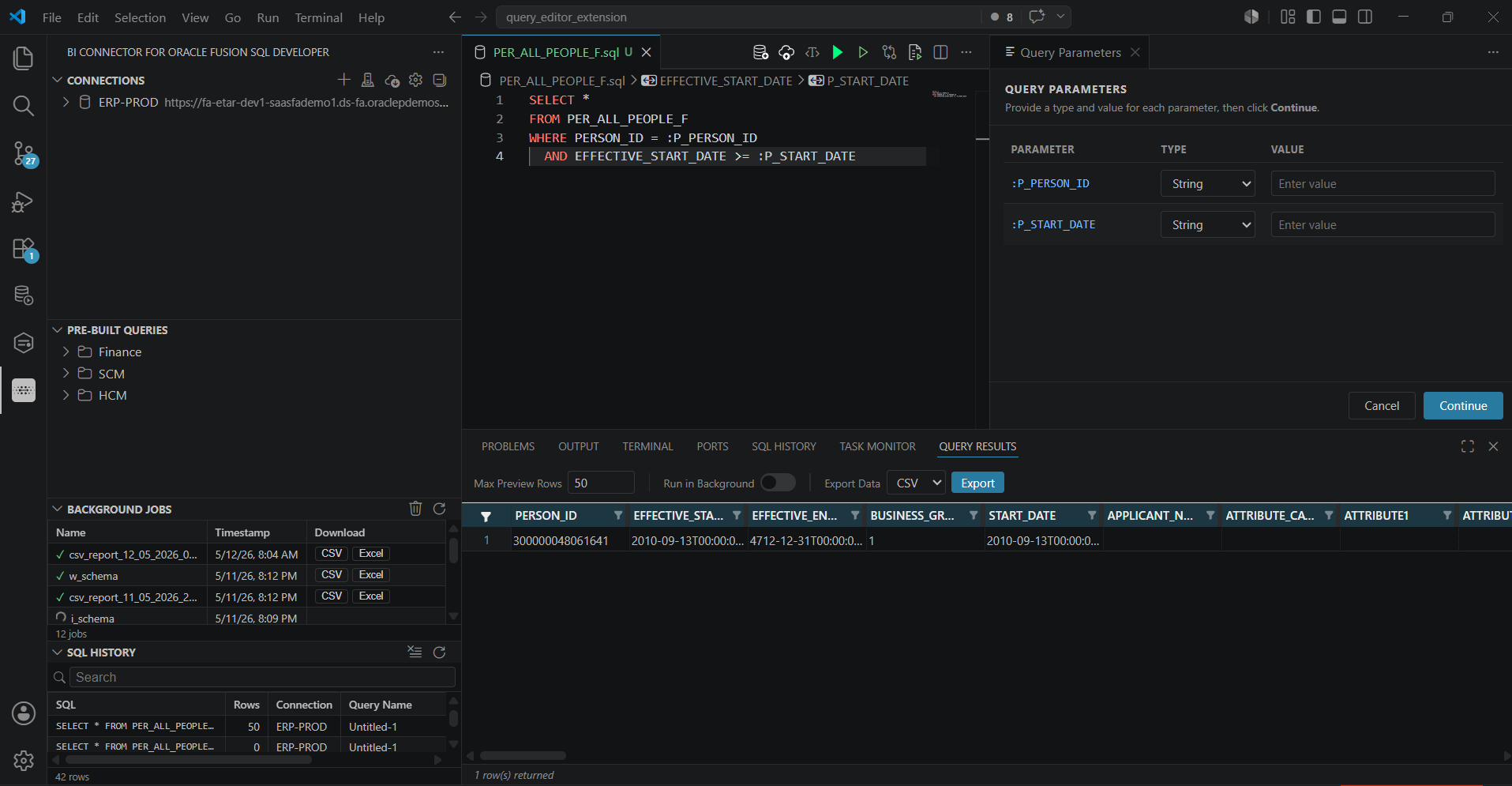
7. Version Control for Queries
Save SQL files in your local workspace or repository and track changes with Git, Bitbucket, or any other source control platform — just like application code.
Already have queries in BI Connector? See Pull Existing Queries from a BI Connector Instance to bring them into your local file system and begin versioning them immediately.
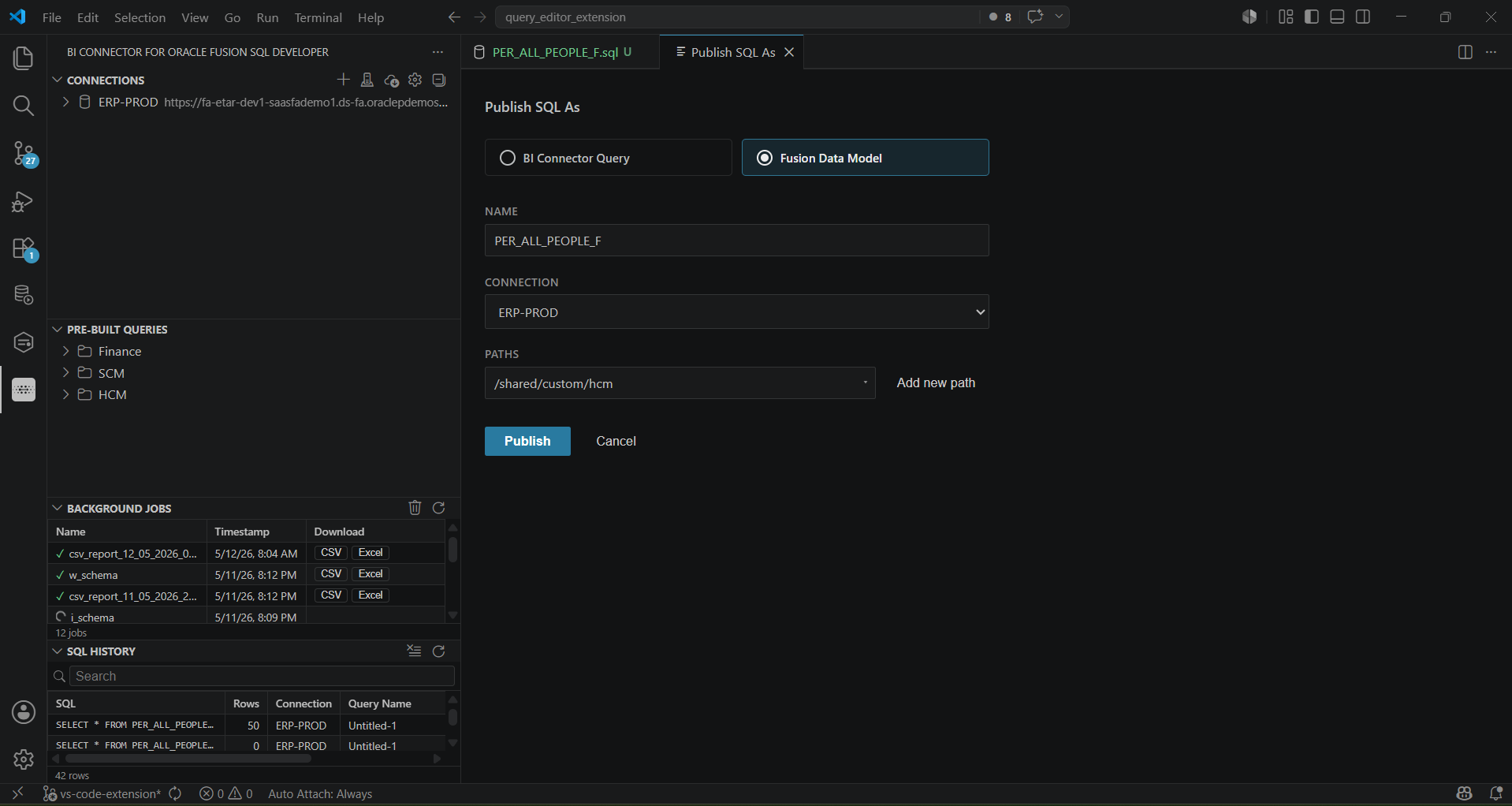
8. Publish a Query as an Oracle Fusion Data Model
Publish queries from your local workspace directly to Oracle Fusion as a Data Model:
- Click the Publish as SQL icon in the top-right of the editor.
- Choose Fusion Data Model.
- Enter a Data Model name.
- Select the Oracle connection.
- Choose or add the Oracle folder path.
- Click Publish.
To publish to a BI Connector Server instead (Power BI Gateway, Self-hosted Integration Runtime, or Tableau Server/Bridge), see Publish a Query to a BI Connector Instance.
Managing Queries with BI Connector Instances
Add a BI Connector Server Instance
BI Connector Server instances are the source and destination for query sync — pull existing queries from them into your workspace, or publish queries from your workspace to them.
Add an instance before you pull from or publish to it:
- Hover over the Connections panel.
- Click the Manage BI Connector Server Instance icon.
- Enter the instance details:
- Connection Name — a friendly name to identify this instance.
- Host URL — your BI Connector Server instance URL (e.g.,
https://prod.biconnector.com/). - API Key — the API key for the server instance. You can find this in the BI Connector Server under Settings → API Key.
- Click Save to add the instance.
Pull Existing Queries from a BI Connector Instance
Pull existing queries from BI Connector Desktop, or from a BI Connector Server running on Power BI Gateway or Tableau Server:
- Hover over the Connections panel.
- Click the Pull from BI Connector icon.
- Select a BI Connector instance. To add a new one, see Add a BI Connector Server Instance.
- Choose the local folder where queries should be saved.
- Click Pull.
Publish a Query to a BI Connector Instance
Applicable to servers hosting BI Connector with: Power BI Gateway, Self-hosted Integration Runtime, or Tableau Server/Bridge.
- Click the Publish as SQL icon in the top-right of the editor.
- Choose BI Connector Query.
- Select the target BI Connector instance.
- Click Publish.
To publish automatically on every save, enable Auto-Sync in the extension settings. This removes the manual publish step entirely.
Extension Settings
| Setting | Description |
|---|---|
biconnector.instances | List of BI Connector instance URLs and API keys. |
biconnector.autoSyncQueries | Automatically publish query files to BI Connector on save. |
biconnector.licenseSettings | Activate or update license details. |
Support and Feedback
Have a question, issue, or feature request? Email us at support@biconnector.com.
License
Use of this extension requires a valid BI Connector subscription. A 14-day free trial is available on first launch.