This article walks you through the complete JWT (JSON Web Token) authentication setup for Oracle Fusion Cloud.
The setup involves two steps:
- Generate an X.509 key pair using OpenSSL.
- Configure the API Authentication Provider in Oracle Fusion Security Console.
Step 1: Generate X.509 Key Pair Using OpenSSL
You need a private key and a public certificate. The private key signs your JWT tokens, while the public certificate gets uploaded to the Oracle Fusion Security Console for token verification.
We use OpenSSL for this. It is an open-source toolkit widely used for creating and managing SSL/TLS certificates and encryption keys. Make sure OpenSSL is installed on your system before continuing.
1.1 Create and open a working directory
mkdir oauth-keys

cd oauth-keys
1.2 Generate a 2048-bit RSA private key
openssl genrsa -out private_key.pem 20481.3 Generate the public certificate (valid for 365 days)
openssl req -new -x509 -key private_key.pem -out public_cert.pem -days 365OpenSSL will prompt you to enter certificate details. Fill in your organization information.
At this point, you should have two files:
- private_key.pem — Keep this secret. It signs your JWT tokens.
- public_cert.pem — Upload to Oracle Fusion Security Console.
1.4 Generate the certificate fingerprint (x5t)
The fingerprint value (called x5t) goes into the JWT header so Oracle knows which certificate to verify against.
Run the following command to generate the SHA-1 fingerprint:
openssl x509 -sha1 -in public_cert.pem -noout -fingerprint
You will get output like:
SHA1 Fingerprint=74:88:BB:C2:5A:EE:18:8B:38:86:E9:FA:FA:55:D8:70:E4:5D:A9:88Copy the fingerprint value after the = sign and convert it to Base64 using one of the following commands:
If you are using Command Prompt or PowerShell:
powershell -command "$hex='74:88:BB:C2:5A:EE:18:8B:38:86:E9:FA:FA:55:D8:70:E4:5D:A9:88'.Replace(':',''); $bytes = for ($i=0; $i -lt $hex.Length; $i+=2) {[Convert]::ToByte($hex.Substring($i,2),16)}; [Convert]::ToBase64String($bytes)"If you are using Git Bash:
echo "74:88:BB:C2:5A:EE:18:8B:38:86:E9:FA:FA:55:D8:70:E4:5D:A9:88" | tr -d ':' | xxd -r -p | base64Step 2: Configure API Authentication Provider in Oracle Fusion Security Console
This step tells Oracle Fusion to trust tokens signed by your private key.
2.1 Create the Authentication Provider
- Login to Oracle Fusion as a user with the Security Manager role.
- Navigate to Navigator → Tools → Security Console.
- Click API Authentication.
- Click Create Oracle API Authentication Provider.
- Click Edit.
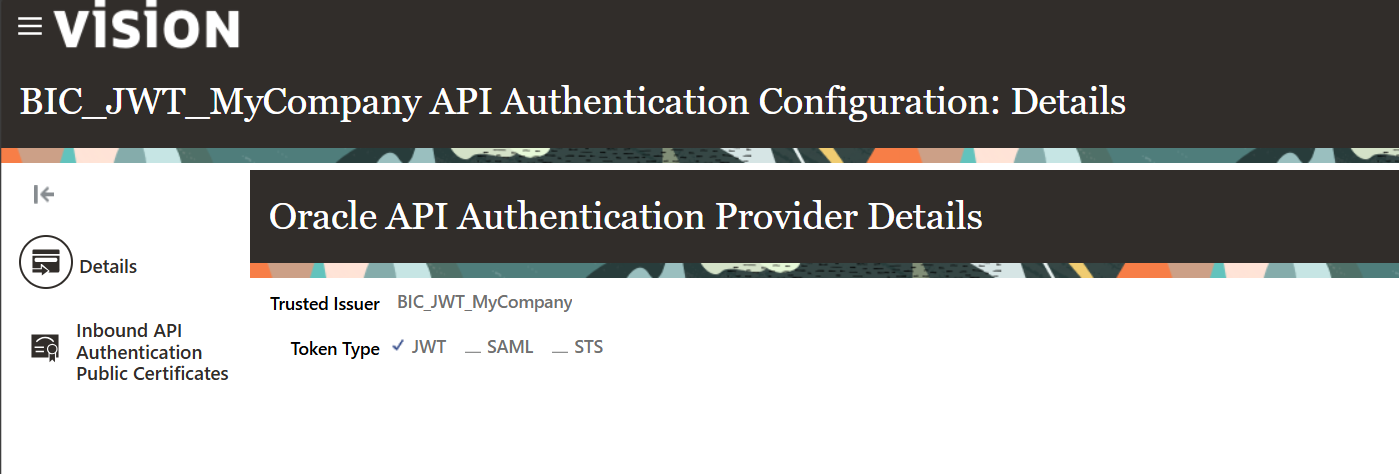
- Set Trusted Issuer to a name that identifies your application (for example: BIC_JWT_MyCompany ).
- Set Token Type to JWT.
- Click Save and Close.
2.2 Upload the Public Certificate
- From the left-hand menu, select Inbound API Authentication Public Certificates.
- Click Add.
- Set Certificate Alias to a friendly name (for example,
BIC_JWT_MyCompany). - For Certificate File, browse and select your
public_cert.pem. - Click Done.

Verify that the Trusted Issuer is listed and Token Type shows JWT.
Credentials Summary
After completing all the steps, securely store the following values. You will need them when configuring BI Connector:
| Value | Where It Comes From |
| Username | Oracle Fusion Cloud username for BI Connector |
| Key Alias | Fusion Security Console → Trust Issuer Name from Step 2.1 |
| Private Key | Generated in Step 1 (private_key.pem) |
| Token Fingerprint | Base64-encoded SHA-1 fingerprint from Step 1 |